Jekyll Static Site Generator
What is jekyll
Section titled “What is jekyll”- Jekyll is a simple, extendable, static site generator. You give it text written in your favorite markup language and it churns through layouts to create a static website.
- Jekyll is written in Ruby
- A gem is code you can include in Ruby projects, It allows you to package up functionality and share it across other projects or with other people
- Gems can perform functionality such as
- Converting a Ruby object to JSON
- Pagination
- Interacting with APIs
what is API : When you use an application on your mobile phone, the application connects to the Internet and sends data to a server. The server then retrieves that data, interprets it, performs the necessary actions and sends it back to your phone. The application then interprets that data and presents you with the information you wanted in a readable way. This is what an API is - all of this happens via APIsuch as GitHub - Jekyll itself is a gem as well as many Jekyll plugins including jekyll-feed, jekyll-seo-tag and jekyll-archives
- A Gemfile is a list of gems required for your site
- Bundler installs the gems in your Gemfile
- It’s not a requirement for you to use a Gemfile and bundler, You only need to install it once — not every time you create a new Jekyll project
- Jekyll is a static site generator so we need Jekyll to build the site before we can view it.
- http://simpleprimate.com/blog/markdown-basics
How to install
Section titled “How to install”sudo apt-get install ruby-full build-essential zlib1g-devecho '# Install Ruby Gems to ~/gems' >> ~/.bashrcecho 'export GEM_HOME="$HOME/gems"' >> ~/.bashrcecho 'export PATH="$HOME/gems/bin:$PATH"' >> ~/.bashrcsource ~/.bashrcgem install jekyll bundler
if problems happend
sudo gem update --systembundle installbundle exec jekyll serve
How to work
Section titled “How to work”- Working with github pages
GitHub Pages is available in public repositories with GitHub Free, and in public and private repositories with GitHub Pro, GitHub Team, GitHub Enterprise Cloud, and GitHub Enterprise Server.- Create a repository
Head over to GitHub and create a new repository named username.github.io, where username is your username (or organization name) on GitHub - Clone the repository
git clone https://github.com/username/username.github.io - Enter the project folder and add an index.html file
cd username.github.ioecho "Hello World" > index.html - Add, commit, and push your changes
git add --all
git commit -m "Initial commit"
git push -u origin master - Fire up a browser and go to https://username.github.io

- Create a repository
- Jekyll themes on GitHub
- If you don’t already have a repository for your GitHub Pages site, create a new repository with a README.
- Navigate to your GitHub Pages site’s repository
- Under your repository name, click Settings

- On the settings page, scroll down and under “GitHub Pages”
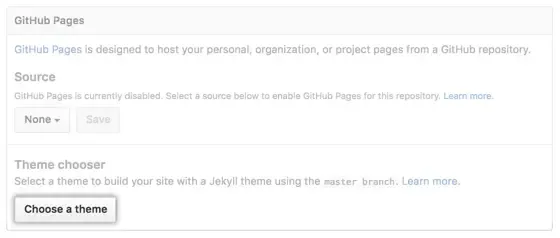
- Click Choose a theme to add a theme to your site for the first time
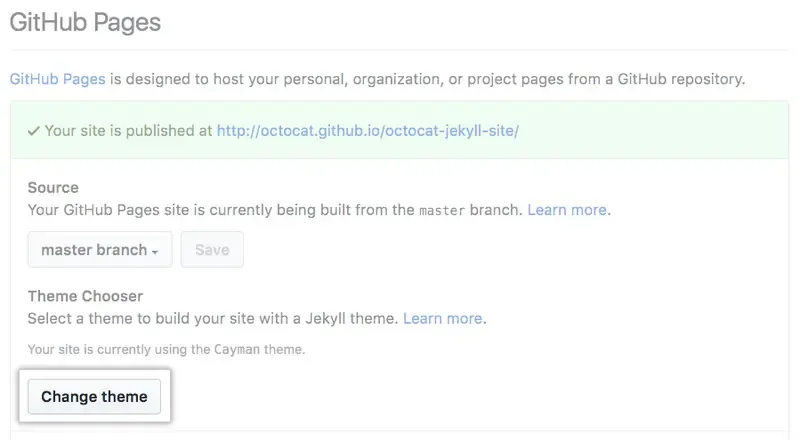
- Click Change theme to change an existing theme for your site
- Click Choose a theme to add a theme to your site for the first time
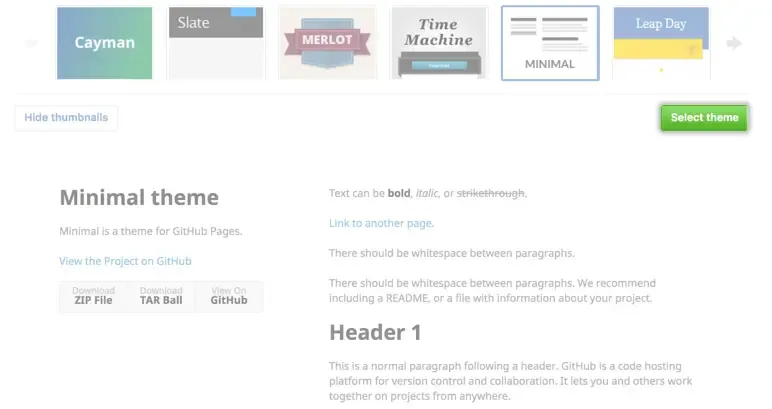
- On the theme selection page, review your theme options. To choose a theme, click the theme you want and then click Select theme
- select theme from git
settingsthengithub pagesthenchange theme