Skip to content
- after finish the design, export
stl file
- open
modela4 software
- Click
File then Open and choose the stl file
- Click
File then Select Machine then Set the machine selection, Model Name : SRM-20, Command Set : RML-1, Spindle Unit : Standard, Printer Name : Roland SRM-20
- Set the origin
- Input model size
- Click
 then
then Automatic then OK
- Create the roughing process. Select the top surface, click

- Select
Roughing then Next
- Select the cutting tool
- Set the area of roughing, divide x by 2 and put the data in lower left x and upper left right x, and make the same thing in y
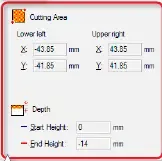
- Note : For double-sided cutting, configure the settings so that
-1 mm and +1 mm are added to the lower-left (X/Y) and upper-right (X/Y) distances, respectively.
- Set the tool path then
Next then Finish 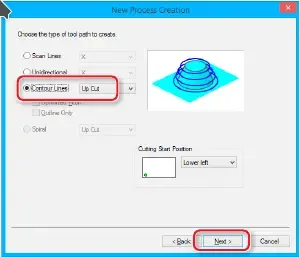
- Set the Finishing Process then Select the top surface, click
- Select
finishing then Next
- Select the cutting tool.
- Set the area of roughing, divide x by 2 and put the data in lower left x and upper left right x and make the same thing in y
- Note : For double-sided cutting, configure the settings so that
-1 mm and +1 mm are added to the lower-left (X/Y) and upper-right (X/Y) distances, respectively
- Set the tool path then
Next then Finish
- For double sided, select the bottom surface, and repeat all these steps